Board game rulebooks on an e-reader: rulebook PDFs rebuilt for Kindle, Kobo, reMarkable and Boox
A rulebook PDF is a print object, and a strange one: often landscape, often a two-page spread of setup diagrams, always full of small icons the game depends on. Open it on an e-reader and the page shrinks to fit the portrait screen, so the icon key is a grey dot and the setup diagram is a thumbnail. The PDF is not broken. It was laid out for a booklet in a box, and the reader is doing exactly what it was told.
↑ Upload and configure in our Studio
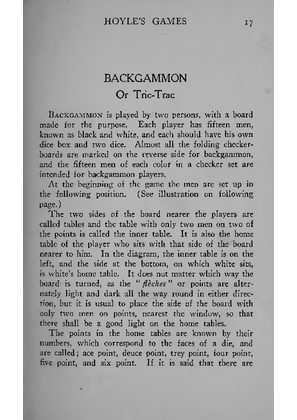
Hoyle’s Games, Edmond Hoyle, typeset by the McClure Company, public domain
This converter treats each page of the rulebook as an image and rebuilds it for the exact panel you own. It trims the margins so the page fills the screen, splits a landscape spread into two portrait pages and keeps a rotated copy for the readers that turn, lifts the contrast so the small type survives e-ink grey, keeps the colour so a Kindle Colorsoft or a Kobo Colour shows the iconography as printed, and writes a file the device opens natively: EPUB for a Kindle, KEPUB for a Kobo, PDF for a reMarkable, or CBZ for another app. BoardGameGeek threads have recommended Kindle Comic Converter for exactly this for years; this is that engine, hosted, with a preview.
Honest scope first: this is for rulebooks you already hold as a PDF, from the publisher’s site or the game’s BoardGameGeek files section. It does not make the text searchable and it does not build a table of contents. What it does is the part that makes a rulebook legible on e-ink, and it does that in the browser, free, with a live preview before anything converts.
- Files auto-delete after 24 hours
- No install, runs in any browser
- Free to use
- The genuine open-source KCC engine
How to convert a board game rulebook for an e-reader
Drop in the PDF
The publisher’s rulebook PDF, a BoardGameGeek upload or a scan all work, up to 1GB and 1000 pages per file and 20 files per batch, so the rulebook, the reference sheet and the expansion rules go in together. A folder of page images zipped up, or a CBZ, is accepted too.
Margins, spreads, contrast and colour are already set
This page presets margin cropping with page-number trimming, an auto-level pass that pushes e-ink greys towards black and white, spread handling that splits a landscape page into two portrait pages and keeps a rotated copy, colour on, and left-to-right page order. Manga mode is off, so nothing reads right to left.
Pick your device
A Kindle Scribe profile is preselected as a starting point. Every current Kindle, Kobo and reMarkable has its own profile that builds pages for that panel’s exact pixel count, colour models included, so pick your model from the list. For a Boox, a PocketBook or any reader not listed, choose Custom conversion and type the panel’s width and height in pixels.
Check the preview, convert, download
The preview renders real pages at the device size, which is the moment to confirm the icon key is still legible. Convert, then download the file or pick it up on the reader from your Reader Shelf over Wi-Fi. Files auto-delete after 24 hours.
What BoardGameGeek says about rulebooks on an e-reader
BoardGameGeek thread 1344563
A forum thread on reading rulebook PDFs on a Kindle, where Kindle Comic Converter is the tool members point to.
Read the threadBoardGameGeek thread 1347512
A second thread from the same year on getting game rules onto an e-ink reader, with the same recommendation.
Read the threadBoardGameGeek thread 3174947
A recent thread on rulebooks for e-ink readers; the advice has not changed, only the devices.
Read the threadWhich e-readers work for board game rulebooks, by brand
| Device | Profile in the picker | Screen | Recommended output |
|---|---|---|---|
| Kindle Colorsoft and Kindle Scribe Colorsoft | Kindle Colorsoft, Kindle Scribe Colorsoft | 7 and 10.2 inch colour e-ink | EPUB in colour, delivered by Send to Kindle, the Reader Shelf or USB |
| Kobo Clara Colour and Libra Colour | Kobo Clara Colour, Kobo Libra Colour | 6 and 7 inch colour e-ink | KEPUB in colour, copied over USB or downloaded from the Reader Shelf in the Kobo browser |
| Kindle Scribe, Kobo Elipsa and other greyscale readers | A profile per model, from the basic Kindle to the Elipsa | 6 to 10.3 inch depending on the model | The brand’s native format, rendered in grey on the device |
| reMarkable (any model) | A profile per model, reMarkable 1, 2 and Paper Pro (colour) | 10.3 to 11.8 inch depending on the model | PDF, loaded through the reMarkable app; you can write on it |
| Boox, PocketBook and other Android readers | Custom conversion | Type the panel’s pixel width and height | EPUB or PDF, downloaded in the device’s own browser from the Reader Shelf |
What this cannot do
No searchable text in the converted file, no table of contents built from the PDF’s bookmarks, no player aids it did not find in the PDF, and no magic on a 6 inch panel: a dense landscape spread split in two is readable on a Paperwhite or a Clara, a whole-spread rotated copy is small on one. A 10 inch reader of any brand is the comfortable size for a rulebook.
Margins are where the legibility goes
Rulebook margins are generous because a booklet is held in the hand, and they cost a fifth of the page on a panel. Trimming them before the page is sized to the screen is most of why a converted rulebook reads so much larger than the raw PDF, and the preset here trims the page numbers along with the border.
Right to left is off here
Every manga page on this site defaults to manga mode, which stamps right-to-left reading into the output. Rulebooks read left to right, so this page turns manga mode off before your file goes in; you do not need to find the switch.
Frequently asked questions
Can I read PDF game rules on a Kindle?
Yes. A PDF opened directly on a Kindle shrinks to the page’s print proportions with its margins intact, which on a landscape rulebook is unreadable; converted with your model’s profile, each page is cropped, split if it is a spread, and rebuilt at the panel’s own pixel count, so the text fills the screen. Deliver it with Send to Kindle, the Reader Shelf or USB. A Kobo, a reMarkable and a Boox work the same way with their own profiles and delivery.
What happens to a landscape rulebook or a two-page setup spread?
The preset splits every landscape page into two portrait pages, left half then right half, and also keeps a rotated copy of the whole page, so a setup diagram that must be seen whole is one page turn away. If you only want one of the two behaviours, the page layout options let you choose split only or rotate only before converting.
Do the colours survive?
In the file, yes: colour is switched on for this page, so the icon key and the player-colour references are kept as printed. On a Kindle Colorsoft, a Scribe Colorsoft, a Kobo Clara Colour or Libra Colour, or a reMarkable Paper Pro they display in colour. On a greyscale panel the same file renders in grey, exactly as a greyscale conversion would, so nothing is lost by leaving colour on.
Is this what the BoardGameGeek threads recommend?
The tool they recommend is Kindle Comic Converter, the open-source engine this page runs. The threads linked below walk through installing it and finding the right profile by hand; this page presets the rulebook-friendly options, hosts the engine so there is nothing to install, and shows a preview before the conversion runs. The output is the same kind of file.
Which output format should I choose?
EPUB for a Kindle, which is what Send to Kindle accepts. KEPUB for a Kobo, for faster page turns. PDF for a reMarkable, which handles PDFs properly and lets you write on the file. EPUB or PDF for a Boox, whichever its reader app prefers. CBZ gives you the cropped, split page images on their own if you read in a different app.
Page extraction, cropping, spread splitting and contrast run on Kindle Comic Converter (KCC), the open-source engine built for putting image-based pages on e-readers, and the one BoardGameGeek members have been recommending for rulebooks for years. That the pages hold setup diagrams rather than panels changes nothing about the work, which is why the fit is honest. Hosted here with a live preview, no install.
Free, margins cropped, spreads split, colour kept, built for your panel