Upscale manga for Kindle: enlarge small pages to your screen, no AI involved
By default the converter shrinks pages that are bigger than the screen and leaves smaller ones alone, so an old 800 pixel tall scan sits in the middle of a 1648 pixel Paperwhite with a border round it and lettering that was already small made smaller. Enlarging small pages resizes them up to the device resolution, so the page fills the screen and the text is as big as the screen allows.
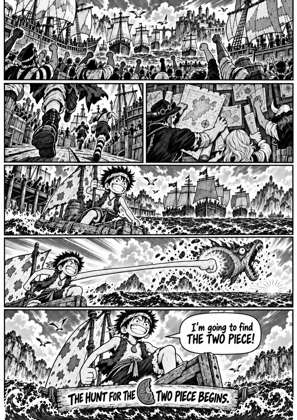
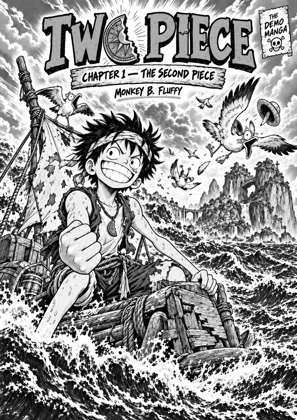
↑ Upload and configure in our Studio
Be clear about what this is: an ordinary resize, the same interpolation any image tool uses. It does not invent detail, sharpen linework or rebuild screentone; a soft scan enlarged is a bigger soft scan. Learned AI upscaling is a planned feature with its own page, and this is not it. What this does is fill the screen, which on a small scan is most of the readability problem anyway.
- Files auto-delete after 24 hours
- No install, runs in any browser
- Free to use
- The genuine open-source KCC engine
How to enlarge small pages
Drop your manga file
Drag in a CBZ, CBR, ZIP, RAR, 7Z, PDF or EPUB. Older scans and phone-sized rips are the files this is for; a modern high-resolution scan is already larger than the screen and passes through untouched.
Enlarge small pages is already on
Every page smaller than the device resolution is resized up to it, keeping its proportions. Pages already larger than the screen are shrunk as usual. Nothing else about the page changes.
Pick your device
Choose your exact Kindle, Kobo or reMarkable. The target size is that device’s screen, so pick the one you own: a Paperwhite is 1236 x 1648 pixels, a Scribe 1860 x 2480, and a page enlarged for one is wrong for the other.
Check the preview and convert
The preview shows the enlarged page in the device frame. If the source is too soft to read even at full size, no setting will fix that; a better scan will. Otherwise convert and download EPUB, MOBI, KEPUB or CBZ.
Pair it with contrast correction
An old small scan is usually a faded one too. The auto-level contrast correction on fix-eink-contrast stretches the tones back out before the page is sized, and the two options work together: level first, then enlarge.
A better source beats any resize
If a higher-resolution release of the same volume exists, converting that gives a sharper page than enlarging a small one ever will. Enlarging is the right tool when the small scan is the only one you have.
Frequently asked questions
Is this AI upscaling?
No. It is a plain resize to the device resolution, the same operation as enlarging a photo in an image editor. AI upscaling, which reconstructs edges and screentone with a learned model, is planned and has its own page at ai-upscale-manga; it is not live, and this page does not pretend to be it.
Will it make a blurry scan sharp?
No. Enlarging cannot add detail that is not in the source. What it fixes is a page sitting small in the middle of the screen with a border and tiny text. For a scan that is sharp but small, that is the whole problem; for a scan that is soft, it stays soft at full size.
Why is the option off by default?
Most manga scans are already larger than an e-ink screen, so the default only ever shrinks. Enlarging every small page would also blow up things that are small on purpose, like a credits card. It is a choice for the file you know is undersized.
What is the difference from stretch to fill?
Enlarging keeps the page’s proportions, so a page narrower than the screen still has a strip of margin on the sides. Stretch to fill resizes every page to the exact screen size, ignoring proportions, so there is no margin at all but the art is slightly distorted. Stretch includes the enlarging, so the two are not combined.
Does it help on a Kindle Scribe?
Most. The Scribe’s 1860 x 2480 pixel screen is bigger than nearly every scan in circulation, so without enlarging even a decent scan sits inside a border. With it on, the page fills the 10.2 inch panel, which is where the Scribe earns its size for manga.
Conversion runs on Kindle Comic Converter (KCC), the open-source engine manga readers have trusted for years, hosted here with a live preview so there is nothing to install. Enlarging small pages is KCC’s own upscale option, a resize and nothing more.
Free, no install, small pages resized to your screen