Kindle Comic Converter for iPhone & iPad, in Safari
Kindle Comic Converter (KCC) is a desktop program for Windows, macOS and Linux. There is no KCC app on the App Store and no way to run the desktop build on an iPhone or iPad. What does work on iOS is the same engine, run for you: MangaConverter executes the real open-source KCC pipeline on its servers, and Safari on your phone or tablet is the whole interface.
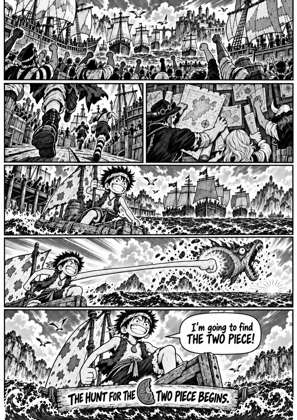
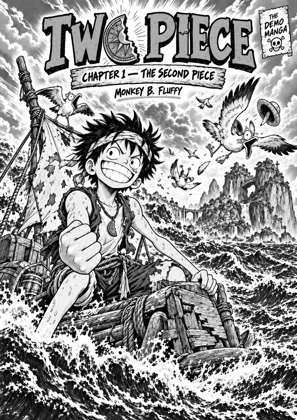
↑ Upload and configure in our Studio
Upload a CBZ, CBR, ZIP, RAR, 7Z, PDF or EPUB from the Files app, pick your Kindle model from the same profile list the desktop app has, check the live page preview, and download the finished EPUB. Then send it to your Kindle from the same device. None of the page processing runs on the iPhone itself, so an older iPhone or a base iPad converts a full volume as fast as a desktop.
We credit KCC openly because it is the engine. If you also own a Mac or PC and want the desktop workflow, the official app lives on the KCC GitHub project, linked at the bottom of this page. This page is for when the comic and the Kindle are both in your bag and the computer is not.
- Files auto-delete after 24 hours
- No app, runs in Safari
- Free to use
- The genuine open-source KCC engine
How to use Kindle Comic Converter on an iPhone or iPad
Open the converter in Safari
Safari, Chrome for iOS or any other browser works; there is nothing to install from the App Store. On an iPad the page lays out like the desktop version, with the preview beside the options.
Pick your comic from the Files app
Tap the upload area and iOS opens the Files picker: choose from iCloud Drive, On My iPhone, Downloads, or any cloud provider that appears in Files. Up to 20 files per batch, 1GB and up to 1000 pages each.
Choose your Kindle and check the preview
Pick your exact Kindle model, turn on manga mode for right-to-left titles, and the live preview renders the converted pages in Safari before you commit, so you are not guessing at settings.
Download and send to Kindle from the phone
Safari saves the EPUB to Files, in Downloads. From there, share it to the Send to Kindle app, upload it on the Send to Kindle website, or email it to your Kindle address. Files on our side auto-delete after 24 hours.
Where the real desktop app lives
KCC is a free open-source project. If you also have a Mac, Windows or Linux machine and want the offline workflow, download it from the official KCC GitHub repository. MangaConverter is an independent hosted frontend for the same engine, not a replacement for the project.
Why iOS cannot run the desktop app
The desktop app needs a Python environment and its own dependencies on the machine it runs on, which iOS does not allow. The browser version moved that whole environment to the server, so Safari only has to upload a file and show a page, which it does on every iPhone and iPad.
Frequently asked questions
Is there a Kindle Comic Converter app for iPhone or iPad?
No. KCC is a desktop application and the project publishes no iOS build; nothing on the App Store is KCC. You do not need one: the browser version on this page is the same engine, run server-side, and it works in Safari on any iPhone or iPad.
Is this really KCC, or a clone?
It is the real, unmodified KCC engine (open source, by Ciromattia and the KCC contributors) executed on our infrastructure. We say so openly. The output is the same kind of file the desktop app gives you.
Where does Safari put the converted file?
In the Files app, under Downloads by default (you can change the location in Safari settings). Open Files, long-press the EPUB and use Share to hand it to the Send to Kindle app, or attach it to an email to your Kindle address.
How do I send the file to my Kindle from an iPhone?
Three routes, all from the phone: the Send to Kindle app for iOS, the Send to Kindle website in Safari, or email to your Kindle address. Email delivery rejects files over about 50MB, so for a long volume use the app or the website instead.
What are the limits on iOS?
The same as on a computer: up to 20 files per batch, up to 1GB per file and up to 1000 pages per file on the free tier. Keep Safari in the foreground while a large file uploads; iOS can pause a background upload.
Does it cost anything?
The free tier covers several conversions per month. Heavy users can upgrade, which is what pays for the servers the conversions run on.
Does it work on an iPad as well?
Yes, and the larger screen makes the preview more useful: you see the converted pages at close to reading size while you adjust spreads, borders and manga mode. The Files picker, the download location and the Send to Kindle routes are the same as on an iPhone.
MangaConverter is powered by the genuine Kindle Comic Converter (KCC) engine, kept up to date with upstream. Honest by design: we name the engine, respect its license, and add the hosting, preview and queueing around it so it runs from Safari.
KCC on GitHubFree, nothing from the App Store, the real KCC engine, in Safari