Guitar tabs on a Kindle or Kobo: tab and songbook PDFs rebuilt for e-ink
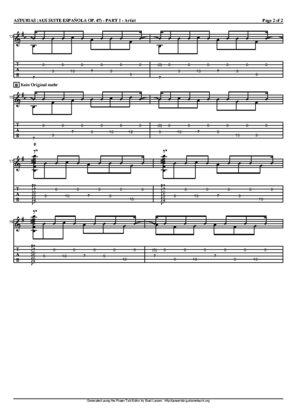
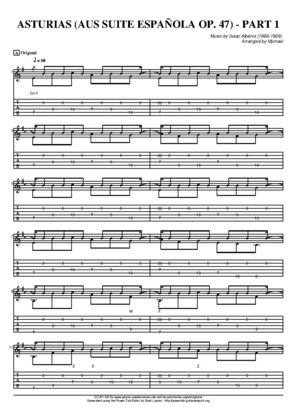
A tab PDF is the worst possible document for a small e-reader: a letter-size page with wide margins, six thin lines per system and a fret number two millimetres tall sitting on each one. Send it to a Kindle as it is and the reader shrinks the whole sheet to fit, so the numbers come out as grey specks you read with a thumb and forefinger on the screen. The reader did what it was asked. The page was made for paper.
↑ Upload and configure in our Studio
This page rebuilds each page of a tab or a songbook for the panel you own. It crops the margins so the systems fill the screen, runs an auto-level pass so the fret numbers and the stems come out black rather than grey, splits a scanned two-page spread into two pages, and writes the file your reader opens natively: EPUB for a Kindle, which Send to Kindle accepts, KEPUB for a Kobo, PDF for a reMarkable, or CBZ if you want the cleaned pages for another app. On a Paperwhite or a Clara a single-column tab becomes readable at arm’s length; on a Scribe or an Elipsa a full songbook page reads from a stand.
Honest scope first: this is for tabs and songbooks you hold as PDFs or page images. A Guitar Pro file or a plain-text tab needs to be printed to PDF first, there is no playback and no transposition, and nothing here is a page-turn pedal. What it does is the part that makes a page legible on e-ink, in the browser, free, with a live preview before anything converts.
- Files auto-delete after 24 hours
- No install, runs in any browser
- Free to use
- The genuine open-source KCC engine
How to put guitar tabs on a Kindle or Kobo
Drop in the tab or songbook PDF
A tab exported from a tab editor and a scanned songbook both work, up to 1GB and 1000 pages per file and 20 files per batch, so a whole folder of songs goes in at once. A ZIP or CBZ of page images is accepted too. A text tab or a Guitar Pro file is not an input: print it to PDF from the app first.
Margins, contrast and page order are already set
This page presets margin cropping with page-number trimming, an auto-level pass that pushes greys towards black and white, spread splitting for scanned songbooks, and left-to-right page order. Manga mode is off, so nothing reads right to left, and the output is greyscale, which is what a greyscale panel shows anyway.
Pick your reader
A Kindle Paperwhite profile is preselected because that is the reader most tabs end up on. Every current Kindle, Kobo and reMarkable has its own profile that builds pages for that panel’s exact pixel count, so pick your model from the list. For a Boox or a PocketBook, choose Custom conversion and type the panel’s width and height in pixels.
Check the preview, convert, send
The preview renders real pages at the device size, which is the moment to confirm the fret numbers and the chord names are legible. Convert, then send the EPUB with Send to Kindle, copy it over USB, or pick it up on the reader from your Reader Shelf over Wi-Fi. Files auto-delete after 24 hours.
Which e-readers work for guitar tabs, by brand
| Device | Profile in the picker | Screen | Recommended output |
|---|---|---|---|
| Kindle Paperwhite, Kindle 11, Colorsoft | A profile per model | 6 to 7 inch, 1072 x 1448 to 1272 x 1696 pixels | EPUB, delivered by Send to Kindle, the Reader Shelf or USB; fine for a single-column tab |
| Kindle Scribe | Kindle Scribe 1/2, Scribe 3, Scribe Colorsoft | 10.2 inch, 1860 x 2480 or 1986 x 2648 pixels | EPUB; a full songbook page reads from a stand |
| Kobo (any model) | A profile per model, from the Clara to the Elipsa | 6 to 10.3 inch depending on the model | KEPUB, copied over USB or downloaded from the Reader Shelf in the Kobo browser |
| reMarkable (any model) | A profile per model, reMarkable 1, 2 and Paper Pro | 10.3 to 11.8 inch depending on the model | PDF, loaded through the reMarkable app; you can write on it |
| Boox, PocketBook and other Android readers | Custom conversion | Type the panel’s pixel width and height | EPUB or PDF, downloaded in the device’s own browser from the Reader Shelf |
What this cannot do
No playback, no transposition, no chord diagrams generated from chord names, no reading of Guitar Pro or text tabs without a PDF in between, no annotation on a converted Kindle or Kobo file, and no magic on a 6 inch panel: a page that is small on paper stays small on a small screen, cropping only reclaims the margins.
Margins are where the legibility goes
A tab exported from an editor can carry an inch of margin on each side, invisible on paper and expensive on a panel. Trimming it before the page is sized to the screen is most of why a converted tab reads so much larger than the raw PDF, and the preset here trims the page numbers along with the border.
Right to left is off here
Every manga page on this site defaults to manga mode, which stamps right-to-left reading into the output. Tabs read left to right, so this page turns manga mode off before your file goes in; you do not need to find the switch.
Frequently asked questions
Can a Kindle display guitar tablature?
Yes, as page images. A tab PDF opened directly is scaled to the page’s print proportions with its margins intact, which is why the numbers are tiny. Converted with your model’s profile, each page is cropped to the systems and rebuilt at the panel’s own pixel count, so the tab fills the screen. Deliver it as EPUB through Send to Kindle, USB or the Reader Shelf, and the Kindle opens it like any book.
How do I send a tab PDF to my Kindle so it is readable?
Convert it here first, choose your Kindle model, keep EPUB as the output, then use Send to Kindle with the EPUB, or copy it over USB, or open your Reader Shelf in the Kindle browser. Sending the raw PDF to the Kindle works too, but the reader will show the whole sheet shrunk to fit, which is the problem you came here with.
Will the fret numbers be sharp enough on a 6 inch screen?
A fret number is the smallest mark on the page, and a scan or a downscale turns it grey. The auto-level pass pushes those greys towards solid black, the page is rebuilt at the panel’s own pixel count rather than downscaled by the device, and cropping the margins draws everything larger to begin with. The live preview shows the real pixels before you commit. A tab with one system per line is comfortable on a Paperwhite; a dense songbook page with lyrics, chords and tab stacked is still small there, and that is where a Scribe or an Elipsa earns its size.
What about a scanned songbook with lyrics and chord diagrams?
The same preset applies, and a scanned book gains the most from it: the gutter shadow and the grey paper are levelled, a two-page spread is split into two pages, and the margins go. Chord diagrams and lyrics are part of the page image, so they come through exactly as printed, in greyscale.
Can I use a Guitar Pro file or a text tab?
Not directly. Export or print the tab to PDF from the app you use, on letter or A4, then drop the PDF in. A text tab in a monospaced font prints to PDF cleanly and converts like any other page; the alignment survives because the page is treated as an image.
Which output format should I choose?
EPUB for a Kindle, which is what Send to Kindle accepts. KEPUB for a Kobo, for faster page turns. PDF for a reMarkable, which handles PDFs properly and lets you write on them. EPUB or PDF for a Boox, whichever its reader app prefers. CBZ gives you the cropped, contrast-fixed page images on their own if you read in a different app.
Page extraction, cropping and contrast run on Kindle Comic Converter (KCC), the open-source engine built for putting image-based pages on e-readers. That the pages hold tab lines rather than panels changes nothing about the work, which is why the fit is honest. Hosted here with a live preview, no install.
Free, margins cropped, fret numbers blackened, built for your reader