Preview your manga on a Kindle screen before converting it
The question every conversion raises is whether the result will read well on the device, and the only honest way to answer it is to look. The studio preview runs the converter itself, the same Kindle Comic Converter the servers use, inside your browser on the page you are looking at, and shows the output on a 3D model of an e-reader at the exact pixel size of the profile you picked. Margins trimmed, spreads split, contrast corrected, reading direction applied: what you see is the page the device will get.
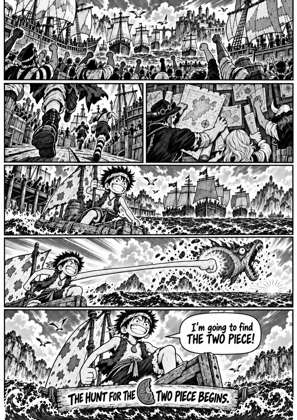
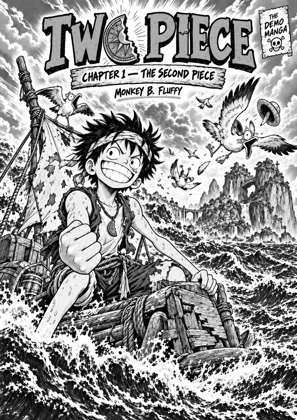
↑ Upload and configure in our Studio
Drop a CBZ, CBR, ZIP, RAR, 7Z, PDF or EPUB and the studio opens on the first page. Jump to any page, flip a setting, and the frame regenerates for that page. The first preview of a session takes a few seconds while the engine boots in the browser; after that each page is quick. The preview is computed in your browser from the file; the conversion itself runs on the servers when you press Convert.
- Files auto-delete after 24 hours
- No install, runs in any browser
- Free to use
- The genuine open-source KCC engine
How the preview works
Drop a file and open the studio
Drag in a CBZ, CBR, ZIP, RAR, 7Z, PDF or EPUB. The studio shows the first page in a device frame beside the original, with the settings rail next to it.
Pick the page you want to check
Type a page number in the rail, use the chevrons, or open the Pages tab and choose Open in Studio on any thumbnail. A spread page or a dense page is the one to check; a plain page tells you little.
Change a setting and watch the frame
Switch the device, turn on spread splitting, change margins or contrast, and the preview regenerates for that page. A spread that splits into two shows both halves in reading order, so a mirrored spread is caught here, not on the reader.
Convert when it looks right
The conversion runs on the servers with the settings you previewed. Download EPUB, MOBI, KEPUB or CBZ, or fetch the file on the Kindle from your Reader Shelf. Files auto-delete after 24 hours.
What to check on a Kindle
Two things decide whether manga reads well on e-ink: the tonal range, which shows as faded blacks if the scan is flat, and the page size, which shows as a border or as shrunken lettering. The preview makes both visible before the file exists; the fix-eink-contrast and upscale pages preset the corrections.
The preview needs WebGL for the 3D frame
The device model is drawn with WebGL. On a browser without it, or with reduced motion requested, the page still generates and is shown without the 3D body. The page itself is never blocked by the frame.
Frequently asked questions
Is the preview a simulation or the real output?
The real output, for that page. The converter runs in your browser on the page you selected and the frames it returns are exactly the pages the server conversion produces for the same input and settings. There is no second rendering path that could differ.
Why does the first preview take a few seconds?
The engine is Python, and it boots inside the browser the first time a session needs it. Once booted it stays warm, so the second page and every page after it generate much faster. Closing the tab ends the session and the next one boots again.
Is the device frame my exact Kindle?
The screen is: the frame shows the page at the pixel size of the profile you chose, a Paperwhite’s 1236 x 1648, a Scribe’s 1860 x 2480, and so on. The 3D body is a model of an e-reader; some profiles have their own model and the rest use a stand-in, so judge the page by the screen, not the bezel.
Can I preview every page of a volume?
Any page, one at a time. Each page is generated on request and the studio keeps a small window of recent pages in memory, so you can step through a chapter. Generating a whole volume in the browser is what the conversion is for.
Where does the preview run?
In your browser. The page you preview is read from the file locally and processed by the engine running in a web worker on your machine. The conversion itself runs on our servers, and the file is deleted there 24 hours later.
The preview is Kindle Comic Converter (KCC), the open-source engine manga readers have trusted for years, running in your browser; the conversion is the same engine on our servers. There is nothing to install for either.
Free, no install, the real engine on the page you pick