Choose the JPEG quality of your converted CBZ: smaller files or sharper pages
Every page that goes through the converter is saved again as a JPEG, and the quality it is saved at decides two things at once: how large the file is and how clean the linework and screentone look. The default of 85 is the balanced choice and the right one for most volumes. This page presets 95, the highest the engine allows, for readers who would rather carry a bigger file than see any compression in the tone.
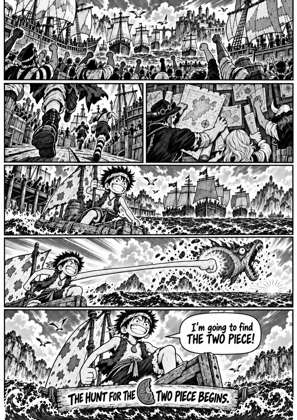
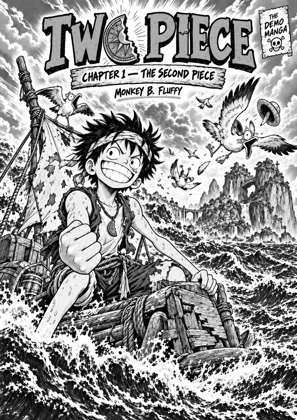
↑ Upload and configure in our Studio
The studio offers three settings rather than a number field: 70 for smaller files, 85 balanced, 95 highest quality. Drop a CBZ, CBR, ZIP, RAR, 7Z, PDF or EPUB, pick your device, and change the choice in the studio if 95 is not what you want. If the file size is the thing you are managing, the compress-cbz page targets a size in megabytes instead, and if you want no re-encoding at all, lossless-cbz-to-epub repacks the original pages.
- Files auto-delete after 24 hours
- No install, runs in any browser
- Free to use
- The genuine open-source KCC engine
How to set the JPEG quality
Drop your comic file
Drag in a CBZ, CBR, ZIP, RAR, 7Z, PDF or EPUB. The setting applies per file, and Apply to all copies it across a queued series.
JPEG quality is preset to 95
Highest quality is selected. Open the JPEG quality control in the studio to switch to Balanced (85) or Smaller files (70) for this file.
Pick your device
Choose your exact Kindle, Kobo or reMarkable. Pages are sized to that screen first and then saved at the quality you chose, so the quality setting works on the final page, not the oversized scan.
Convert and download
Download EPUB, MOBI, KEPUB or CBZ. Compare the size against a Balanced conversion of the same volume if you are curious; the preview shows the pages either way. Files auto-delete after 24 hours.
Size is mostly the screen, not the quality
The biggest reduction in a conversion comes from sizing the page to the device: a 2500 pixel scan reduced to a Paperwhite’s 1236 x 1648 pixels drops far more bytes than any quality setting. Quality tunes what is left.
A target size instead
If what you need is a file under a limit, for instance for an email route, compress-cbz presets a target size in megabytes and the converter adjusts to hit it. That is the better tool when the number that matters is the file size, not the encoder setting.
Frequently asked questions
Which quality should I use?
Balanced, 85, for almost everything: on a 300 ppi e-ink screen the difference from 95 is hard to see and the file is noticeably smaller. Use 95 for pages with fine screentone or very thin linework that you have seen break up, or for a volume you want to keep as the best copy. Use 70 when the reader’s storage or the transfer route is the constraint.
How much bigger is a 95 file than an 85 one?
It depends on the pages: screentone compresses badly and solid areas compress well, so two volumes at the same setting can differ a lot. We do not quote a percentage because there is no honest single number. Convert one volume at each setting and compare the two downloads.
Does a higher quality make the page sharper than the scan?
No. Quality controls how much the JPEG encoder is allowed to throw away when it saves the page; 95 throws away very little, 70 more. Nothing is added. A soft scan is a soft scan at any setting; the setting decides whether the encoder makes it worse.
Why can I not type a number?
The engine accepts 50 to 95, but the differences a reader can act on are three: smaller, balanced, best. A typed field would need validation and error messages for precision nobody can see on the screen, so the studio offers the three choices and the default sits in the middle.
Does this apply to PNG or WebP output?
No. JPEG quality applies to pages saved as JPEG, which is the default. If you switch the output to PNG or WebP in the advanced options, the JPEG setting is not used for those pages.
Conversion runs on Kindle Comic Converter (KCC), the open-source engine comic readers have relied on for years, hosted here with a live preview so there is nothing to install. The quality setting is KCC’s own JPEG quality option.
Free, no install, JPEG quality 95 preset for you