CBZ to EPUB without recompressing: a lossless repack of the original pages
A normal conversion rebuilds every page for a specific screen: it resizes, trims margins, corrects contrast and re-encodes the image. That is what makes a file read well on e-ink, and it is also a lossy step, because the page is decoded and saved again. If your archive is already exactly the way you want it, perhaps because you prepared the pages yourself or because the release is a careful one, you may want none of that. Keep pages untouched repacks the images as they are into an EPUB: same bytes, same resolution, same quality.
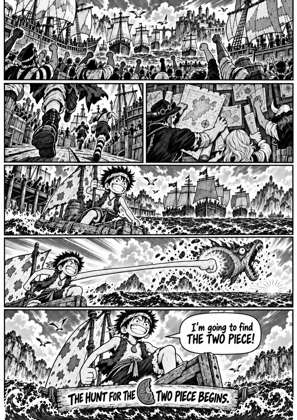
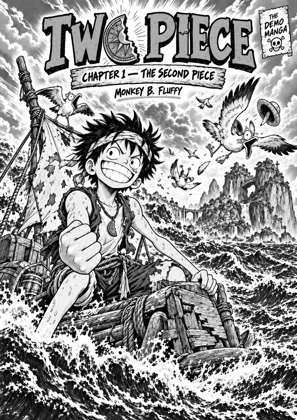
↑ Upload and configure in our Studio
What you give up is everything the image pipeline does. No sizing to the device, no margin crop, no spread splitting, no contrast correction, no right-half-first spread order. The reader shows each page at its original size and scales it on the device. For an archive built for your screen that is exactly right; for an untouched scan it is usually worse than the normal conversion, and the cbz-to-epub page is the better start.
- Files auto-delete after 24 hours
- No install, runs in any browser
- Free to use
- The genuine open-source KCC engine
How to repack a CBZ as an EPUB losslessly
Drop your CBZ
Drag in a CBZ, or a CBR, ZIP, RAR or 7Z; the container does not matter, the pages inside are what get repacked. A whole series queues at once.
Keep pages untouched is already on
Every image goes into the EPUB exactly as it came out of the archive. Nothing is decoded, resized, cropped or re-encoded, and the image options in the studio are greyed out while this is on, because none of them would run.
Pick a device or plain EPUB
The device profile still names the file’s target and sets the reading direction metadata; it does not resize anything in this mode. Pick your reader so the EPUB carries the right metadata, or choose plain EPUB.
Convert and download
Download the EPUB and copy it to the reader. The pages are the originals, so the file is about the size of the archive you uploaded. Files auto-delete after 24 hours.
Who this is for
Readers who prepared their pages themselves, archivists who want the EPUB to be a container change and nothing else, and anyone who tried the normal conversion and prefers the untouched scan on their device. For most raw scans the normal pipeline reads better on e-ink.
Manga mode still applies
Reading direction is metadata, not an image operation, so the right-to-left setting is still written into the EPUB in this mode. What is not written is any split spread order, because spreads are not split.
Frequently asked questions
Is the output really lossless?
The page images are not re-encoded, so their bytes are what they were in the archive; a JPEG that was already lossy stays exactly that JPEG, no better and no worse. The container changes from CBZ to EPUB, which is a ZIP with a manifest, and that is the whole difference.
Will the pages fit my Kindle screen?
Only if they already do. In this mode nothing is resized, so a 2000 pixel wide page is shown by the reader scaled down on the fly, and a small page is shown small. If you want pages built for the screen, that is the normal conversion on cbz-to-epub, which is lossy by nature.
Why is the file bigger than a normal conversion?
Because the pages were not shrunk to the screen. A normal conversion for a Paperwhite reduces most scans to 1236 x 1648 pixels at a balanced JPEG quality, which is often a third of the original size. A lossless repack keeps the originals, so the EPUB is roughly the size of the CBZ.
What if I only want to control the compression?
Then re-encode at a quality you choose instead of skipping processing. The cbz-jpeg-quality page sets the JPEG quality to 70, 85 or 95: at 95 the pages are resized for the screen but saved with very little compression loss, which keeps the benefits of the pipeline.
Does the output work on Kobo too?
Yes. The EPUB is standard, and for Kobo you can pick a Kobo profile and download KEPUB, which is the same file with Kobo’s reader hints. The pages are untouched either way.
Conversion runs on Kindle Comic Converter (KCC), the open-source engine comic readers have relied on for years, hosted here so there is nothing to install. Keep pages untouched is KCC’s own no-processing option.
Free, no install, pages go in exactly as they are