The Quran on a Kindle or Kobo: a mushaf scan fitted to the screen, page for page
Many readers want the mushaf they know on an e-ink screen: the same page layout, the same line breaks, the same page numbers, so that what they have memorised by position stays where it is. A scanned PDF of that mushaf is the right starting point, and it is also where the trouble starts. Opened directly on a Kindle or a Kobo, the whole sheet is shrunk to fit, the margins take a quarter of the width, the paper scans grey, the vowel marks blur, and each page turn goes the wrong way, because the reader assumes a book bound on the left.
↑ Upload and configure in our Studio
This page rebuilds each page of the scan for the panel you own, and does nothing else to it. It crops the margins so the page fills the screen, runs an auto-level pass so the text and the vowel marks come out black on white, enlarges a small scan to the panel’s pixel count instead of leaving a border, writes right-to-left page progression into the file so a page turn moves the way the book is bound, and saves the result as EPUB for a Kindle or KEPUB for a Kobo, or PDF for a reMarkable. The text is never re-set, re-flowed, translated or recognised: every page is the scanned image of the printed page, cleaned and sized. A scanned Bible, Tanakh, Granth or prayer book takes the same path, with page direction set to match the book.
Plain scope: this is for a scan you already hold as a PDF or as page images and are entitled to copy. It does not add a translation, a tafsir, audio or search, and it does not know what is on the page. What it does is the part that makes a scanned page legible on e-ink, in the browser, free, with a live preview before anything converts.
- Files auto-delete after 24 hours
- No install, runs in any browser
- Free to use
- The genuine open-source KCC engine
How to put a scanned mushaf on a Kindle or Kobo
Drop in the scan
A PDF of the mushaf, up to 1GB and 1000 pages per file and 20 files per batch, so a complete mushaf of 600 or so pages goes in as one file. A ZIP or CBZ of page images is accepted too, so a copy you photographed page by page is fine.
Margins, contrast and page direction are already set
This page presets margin cropping with page-number trimming, the auto-level pass for grey scans, enlargement of pages smaller than the screen, spread splitting with the right-hand page first, and right-to-left page progression, so a page turn advances the way the book is bound. The output is greyscale, which is what a greyscale panel shows anyway. For a scripture bound on the left, switch the reading direction off in the options before converting.
Pick your reader
A Kindle Paperwhite profile is preselected as a starting point. Every current Kindle, Kobo and reMarkable has its own profile that builds pages for that panel’s exact pixel count, so pick your model from the list. For a Boox or a PocketBook, choose Custom conversion and type the panel’s width and height in pixels.
Check the preview, convert, send
The preview renders real pages at the device size, which is the moment to confirm the vowel marks and the ayah markers are legible. Convert, then send the EPUB with Send to Kindle, copy it over USB, or pick it up on the reader from your Reader Shelf over Wi-Fi. Files auto-delete after 24 hours.
Which e-readers work for a scanned mushaf, by brand
| Device | Profile in the picker | Screen | Recommended output |
|---|---|---|---|
| Kindle Paperwhite, Kindle 11, Colorsoft | A profile per model | 6 to 7 inch, 1072 x 1448 to 1272 x 1696 pixels | EPUB with right-to-left page turns, delivered by Send to Kindle, the Reader Shelf or USB |
| Kindle Scribe | Kindle Scribe 1/2, Scribe 3, Scribe Colorsoft | 10.2 inch, 1860 x 2480 or 1986 x 2648 pixels | EPUB; a 15-line page reads near printed size |
| Kobo (any model) | A profile per model, from the Clara to the Elipsa | 6 to 10.3 inch depending on the model | KEPUB with right-to-left page turns, copied over USB or downloaded from the Reader Shelf in the Kobo browser |
| reMarkable (any model) | A profile per model, reMarkable 1, 2 and Paper Pro | 10.3 to 11.8 inch depending on the model | PDF, loaded through the reMarkable app |
| Boox, PocketBook and other Android readers | Custom conversion | Type the panel’s pixel width and height | EPUB or PDF, downloaded in the device’s own browser from the Reader Shelf |
What this cannot do
No text re-flow, no re-typesetting, no OCR, no search, no translation, no tafsir, no audio and no recitation marks the scan did not already carry. It does not know what is on the page. No magic on a 6 inch panel either: a page that is small on paper stays small on a small screen, cropping only reclaims the margins.
Right to left is on here
Every manga page on this site defaults to manga mode, which writes right-to-left page progression into the output, and this is the one non-manga page where that default is exactly right: a mushaf is bound on the right. The preset keeps it on and splits any scanned spread right half first. For a left-bound scripture, switch it off before converting.
Use a scan you may copy
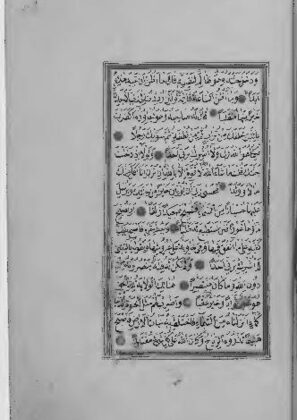
Many modern mushaf prints are typeset editions with their own rights, and many libraries publish historical copies under a public-domain mark. Convert a PDF you are entitled to copy for your own reading; the demo pages on this page are from a 19th-century manuscript published by its holding library in the public domain, and they are decoration only.
Frequently asked questions
Can I read the Quran on a Kindle?
Yes. The Kindle store has Quran editions as e-books, which re-flow the text and lose the mushaf page layout, and a scanned mushaf PDF opened directly keeps the layout but shrinks it to the margins. This page is the third way: the scanned page, cropped and sharpened, rebuilt at the Kindle’s own pixel count, delivered as EPUB through Send to Kindle, USB or the Reader Shelf, with page turns going right to left. The page you see is the page that was printed.
Will the page turns go right to left?
Yes. The preset writes right-to-left page progression into the EPUB or KEPUB, the same mechanism manga uses on this site, and Kindle and Kobo both follow it: a tap or swipe advances to the next page as the book is bound. The page order in the file is the order of the scan, so page 2 follows page 1 as printed. Nothing in the text is mirrored or changed.
Is the Arabic text changed in any way?
No. Every page is treated as an image, exactly as a scanned comic page would be, so the letters, the vowel marks, the ayah markers and the line breaks come through as printed. Cropping removes margin only, and the auto-level pass changes the paper and ink tones, not their shapes. There is no OCR, no re-typesetting and no translation, and the converted file is not searchable for the same reason.
Will the vowel marks and small markers be sharp on a 6 inch Kindle?
The small marks are the risk on e-ink, and the scan quality decides most of it. The auto-level pass pushes grey marks towards solid black, the page is rebuilt at the panel’s pixel count rather than downscaled by the device, and cropping draws the page larger to begin with. The live preview shows the real pixels before you commit. A 15-line mushaf page on a Paperwhite is readable but close; on a Kindle Scribe or a Kobo Elipsa it reads at something near printed size.
Does this work for a Bible, a Tanakh, a Granth or another scripture scan?
Yes, the pipeline does not know what is on the page. For a book bound on the right, such as a Tanakh or a Quran, keep the reading direction as preset. For a Bible or a prayer book bound on the left, switch the reading direction off in the options and the pages advance left to right. Everything else, the cropping, the contrast and the device sizing, is the same.
Which output format should I choose?
EPUB for a Kindle, which is what Send to Kindle accepts and which carries the page direction. KEPUB for a Kobo, for faster page turns, also with the direction. PDF for a reMarkable, which handles PDFs properly. CBZ gives you the cropped, contrast-fixed page images on their own if you read in a different app.
Page extraction, cropping and contrast run on Kindle Comic Converter (KCC), the open-source engine built for putting image-based pages on e-readers. The right-to-left page progression is the same KCC option every manga on this site uses. Hosted here with a live preview, no install.
Free, margins cropped, contrast fixed, right-to-left page turns, text untouched