Stretch manga pages to fit the screen edge to edge
A manga page is not the same shape as an e-ink screen. A tankobon page is a little taller for its width than a Paperwhite panel, so a page sized to fit leaves a thin border on two sides; a page from a different print format leaves a thicker one. Stretching resizes every page to the exact pixel size of the screen, so there is no border anywhere and the art uses every pixel the device has.
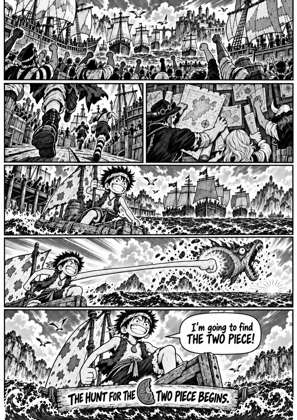
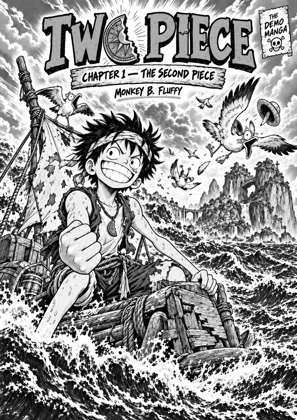
↑ Upload and configure in our Studio
The cost is proportion. Because the page is forced to the screen’s shape, the art is squeezed or pulled by the difference between the two: a few percent for a tankobon page on a Kindle, more for a page that was never near the screen’s shape. Most readers do not notice a few percent; a trained eye does. This page presets stretch so you can judge it in the preview before converting, and the proportion-keeping alternative is one link away.
- Files auto-delete after 24 hours
- No install, runs in any browser
- Free to use
- The genuine open-source KCC engine
How to stretch pages to the screen
Drop your manga file
Drag in a CBZ, CBR, ZIP, RAR, 7Z, PDF or EPUB. The setting applies to every page of every file you queue.
Stretch pages to fill is already on
Each page is resized to the exact width and height of the device screen. Pages larger than the screen are reduced, pages smaller are enlarged, and all of them come out borderless.
Pick your device
Choose your exact Kindle, Kobo or reMarkable profile. The target shape is that screen, so the right profile matters more here than anywhere: a file stretched for a 6 inch Kindle has the wrong proportions on a 10 inch Scribe.
Judge the preview, then convert
The preview shows the stretched page in the device frame. Look at a face or a circle: if the distortion bothers you, switch stretch off and use enlarge small pages instead. If it does not, convert and download EPUB, MOBI, KEPUB or CBZ.
Profile first
Stretch is the setting most sensitive to picking the right device. A page stretched to one screen shape is distorted on every other, so convert for the reader you own and convert again if you change devices rather than reusing the file.
The honest alternative
Enlarge small pages (upscale-manga-for-kindle) fills the screen on one axis and keeps the art’s proportions, leaving a thin strip on the other. For most manga on most Kindles that strip is a few millimetres, and many readers prefer it to any distortion.
Frequently asked questions
Does stretching distort the art?
Yes, by the difference between the page’s shape and the screen’s. For a standard tankobon page on a Kindle Paperwhite that difference is small, a few percent in one direction. For a page with an unusual shape it is larger. The preview shows exactly what you will get on the device.
Is there a way to fill the screen without distorting?
Not completely, because the shapes differ. Two options get close: trimming the empty margins, which is on by default and removes the white border printed into the scan, and enlarging small pages, which fills the screen on one axis while keeping proportions. Stretch is for the reader who wants zero border and accepts the trade.
Why do my pages have borders in the first place?
Two reasons stack up. The scan has a printed white margin round the art, which margin trimming removes. The page’s proportions then differ from the screen, so fitting the whole page inside the screen leaves a strip on the shorter axis. Stretch removes the strip by changing the proportions.
Can I combine stretch with enlarge small pages?
There is no need, and the converter disables the enlarge toggle while stretch is on: stretch already resizes every page, small or large, to the exact screen size.
Does it work for webtoons?
Webtoon mode cuts a vertical strip into screen-sized pages of its own, so stretching has little to do there. For a webtoon, leave stretch off and let webtoon mode handle the layout.
Conversion runs on Kindle Comic Converter (KCC), the open-source engine manga readers have trusted for years, hosted here with a live preview so there is nothing to install. Stretch is KCC’s own stretch option.
Free, no install, every page resized to the exact screen size