Convert Manga for the Kindle 2
The Kindle 2 has a 600 × 670 screen, and files that were not built for it look wrong: pages scaled down on the fly, spreads split badly, contrast off. MangaConverter converts CBZ, CBR, ZIP, RAR, 7Z, PDF and EPUB into files targeted at the Kindle 2's exact resolution, so nothing is resized on the device.
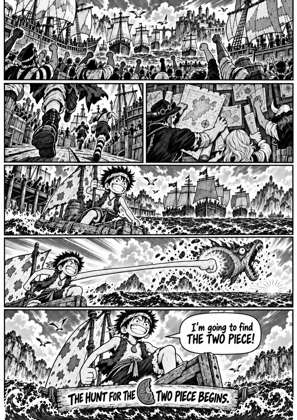
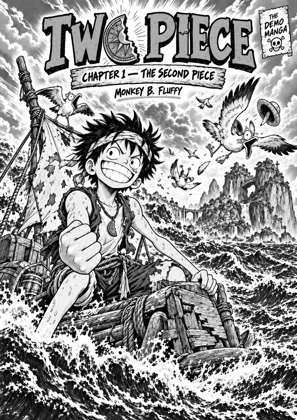
↑ Upload and configure in our Studio
This page starts the converter with the Manga preset, which applies right-to-left page turns, greyscale tuned for e-ink, a paged layout and double-page spreads split. Every setting stays adjustable before you convert; the preset is a starting point, not a lock.
How to convert manga for the Kindle 2
Drop your file
Drag a CBZ, CBR, ZIP, RAR, 7Z, PDF or EPUB onto the dropzone. Several volumes can queue at once.
Your device is preselected
The Kindle 2 profile (600 × 670) is already picked, and the Manga preset has applied its defaults. Switch device or tweak any setting if you like.
Check the preview
The studio previews every page on a simulated Kindle 2 screen before you convert, so you see exactly what the device will show.
Convert and transfer
Download the converted file and put it on your Kindle 2. Copy it over USB into the documents folder, or send it through Amazon Send-to-Kindle (email, app or web).
Built for the Kindle 2
Every page is rendered at 600 × 670, so the Kindle 2 never has to rescale, and the preview shows the true fit before you convert.
Manga preset defaults
Selecting this page's preset applies right-to-left page turns, greyscale tuned for e-ink, a paged layout and double-page spreads split. Untouched settings keep their values, and everything remains editable in the studio.
Frequently asked questions
What resolution does the converted file target on the Kindle 2?
600 × 670, the Kindle 2's real screen resolution, the same profile table the KCC converter itself runs on. Pages are resized once, correctly, instead of being downscaled by the device.
What does the Manga preset change?
It applies right-to-left page turns, greyscale tuned for e-ink, a paged layout and double-page spreads split. These are the exact defaults the Manga preset seeds in the studio; you can change any of them before converting.
Which output format should I pick for the Kindle 2?
EPUB or MOBI. MOBI is a Kindle-only format, and Send-to-Kindle also accepts EPUB.
Which input files can I upload?
CBZ, CBR, ZIP, RAR, 7Z, PDF and EPUB. Several files can be queued and converted in one session.
Under the hood this is Kindle Comic Converter (KCC), the open-source tool the community has trusted for years, running in the cloud, so you skip the install and get the same output.
Free, no install, Kindle 2 profile preselected